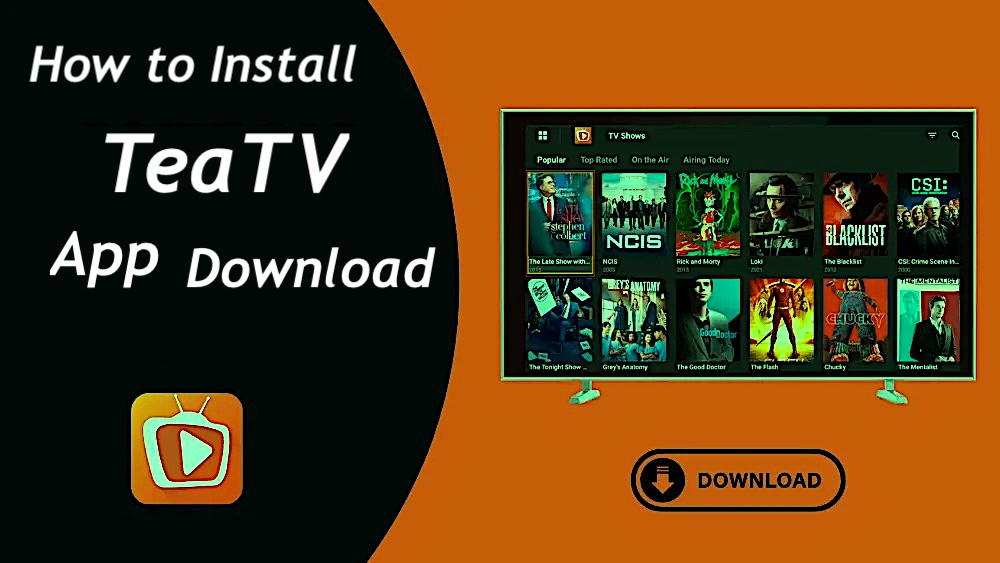
How to Install TeaTV on FireStick: Honestly, after losing way too many Friday nights scrolling endlessly through expensive subscription apps just to find absolutely nothing to watch, getting TeaTV up and running on a FireStick feels like finally unlocking the device’s actual potential.
How to Install TeaTV 2026
It doesn’t matter if you are rocking the fancy Fire TV Cube, the crisp 4K Max, or just trying to squeeze some life out of an older Lite model; this method is surprisingly forgiving and actually plays nice with the entire lineup without requiring a master’s degree in coding. We are going to skip the boring technical fluff and get straight to the sideloading magic, because let’s be real—the goal here is to stop tinkering with settings and actually start binge-watching something decent before the pizza gets cold.
What is TeaTV?
If you have to think of TeaTV less like those shiny, soul-sucking corporate streaming giants and more like that one resourceful, slightly sketchy friend who knows exactly where to find free entertainment without making you sign a contract in blood.
It doesn’t actually host any files—which is definitely just a survival tactic to keep the lawyers at bay—but instead acts like a hyper-caffeinated digital bloodhound, scouring the chaotic, messy corners of the web to scrape up public links.
It’s a bit raw, sure, but whether you’re chasing a trending series or some dusty, obscure documentary that literally no other platform cares about, it manages to drag the entire internet’s library into one spot so you don’t have to do the digging yourself.
Read: How to Install Google Play on FireStick
TeaTV Streaming Homepage
While the price tag is technically zero, relying solely on those basic free links can sometimes feel like trying to stream video through a potato, which is why integrating a premium service like Real Debrid is honestly non-negotiable for serious binge-watchers; it swaps those pixelated, buffering nightmares for high-speed, buttery smooth 4K streams that actually look like they belong in this decade.
- Discover
- Movies
- TV Shows
- HD Releases
- Calendar
- Live TV
- Categories
- Watchlist
- Collection
- Recent
- Download Manager
- Settings
- Check for Updates
Finding an app that actually juggles live TV and on-demand content without needing a flowchart to navigate is rare, which is precisely why TeaTV is practically a mandatory install for anyone rocking a “jailbroken” FireStick. It’s a total double threat that earned its spot on the best-apps leaderboard not because of some marketing budget, but because it just works when you need it to. Instead of jumping between three different APKs just to find a movie or catch a game, this thing handles the heavy lifting for both, proving that sometimes the free, community-loved tools really do beat the polished corporate giants at their own game.
Features of TeaTV
TeaTV offers a range of useful features designed to enhance your streaming experience:
- Built-in Check for Updates button
- Supports premium services like Real-Debrid, Premiumize, and others
- Trakt integration to sync your watch history across devices
- A dedicated Live TV section
- Built-in Download Manager for offline viewing
- Content Calendar to browse upcoming movies and TV shows
- Convenient tools such as Search, Sort, and Filter options
Is TeaTV Safe and Legal?
Since TeaTV operates in the untamed wild west outside the cozy, walled garden of Amazon’s App Store, it is totally normal to get a little twitchy about whether you are essentially inviting a digital vampire into the living room. Nobody wants malware eating their data for breakfast, so to keep things honest, the APK was thrown through the wringer at VirusTotal, and frankly, having just one solitary security vendor out of sixty-six scream “danger” is actually pretty decent odds in the sideloading game. That single flag is likely just a false positive—basically a car alarm going off because a leaf hit the windshield—but since these apps don’t come with a corporate safety net, it’s still smart to keep your guard up rather than blindly trusting every file you find on the internet.
Legal Status of TeaTV
Let’s just address the elephant in the room: TeaTV operates in a legal gray area so murky you’d need night-vision goggles to navigate it, mostly because it doesn’t host content but just scrapes links from who-knows-where like a digital raccoon. Since nobody has the time or the law degree to verify if some random server actually paid for distribution rights, declaring this perfectly legal is impossible, and we definitely aren’t in the business of telling you to break copyright laws. However, if you are going to take the plunge, doing it without a VPN is practically begging for trouble; think of it as necessary digital camouflage that stops your ISP and random snoopers from judging—or flagging—your movie marathon, keeping your private business actually private.
Best VPNS For Streaming Safely
How to Install TeaTV on FireStick
TeaTV has seemingly developed an ego and now refuses to work without its own specific external video player, TPlayer, so yes, we are stuck installing two separate apps today—slightly annoying, but the performance boost makes it forgivable.
Since Amazon treats its App Store like a gated community and won’t let you just waltz in with third-party software, we have to get creative and sideload this bad boy. It is genuinely frustrating that Fire OS is basically just Android with a bad attitude that blocks direct browser downloads, which is why the Downloader app is the absolute MVP here; it’s the only reliable way to bridge that gap and force the stick to do what we actually want it to do.
TeaTV Downloader app
Get your FireStick ready for the good stuff by prepping the Downloader app and unlocking those pesky permission settings that Amazon tries to hide.
- Start by grabbing the Downloader app through the main search bar since the device is basically useless for sideloading without it; just find it, hit ‘Get’, and let it install.
- Head over to Settings and look for ‘My Fire TV’ because we need to peel back the safety stickers Amazon slapped on this operating system to actually get things done.
- If ‘Developer Options’ is invisible—which is just Amazon’s annoying way of saying ‘don’t touch this’—go to ‘About’, highlight your device name, and click the remote button seven times rapidly until the system grudgingly admits you are a developer.
- Finish by diving into that newly revealed menu and flipping the switch for Downloader under ‘Install Unknown Apps’ (or ‘Apps from Unknown Sources’ on older models) so the app actually has the authority to install files instead of just staring at them.
How to Sideload TeaTV Using Downloader
The Downloader app is used often for sideloading, so you may want to pin it to your home screen for easy access.
- Launch Downloader and click the URL field on the right side of the screen.
- Enter the following URL:
- The APK file will start downloading automatically. A progress bar will show the download status.
- Once downloaded, you’ll be prompted to install the app. Click Install.
- Wait for the installation to complete.
- After you see the “App Installed” message, click Done (instead of Open) so you can return to Downloader.
- Now, click Delete to remove the APK file. Why delete it? The APK is no longer needed after installation. Deleting it frees up space on your FireStick.
- Confirm again by clicking Delete.
Streaming Stream Safely VPN
Let’s be brutally honest before hitting play: streaming on third-party apps without protection is basically inviting your Internet Service Provider to sit on the couch, take notes, and judge your movie choices—or worse, send a nasty legal letter. Since distinguishing between a perfectly legal stream and a copyright nightmare is often harder than solving a Rubik’s cube in the dark, using a reliable VPN is less of a tech luxury and more of a digital seatbelt.
It stops the ISP from throttling speeds just because you’re binging 4K content, hides the connection from government surveillance, and smashes through those annoying geo-blocks that ruin movie night. While nobody is handing out accolades for piracy here, accidental clicks happen in this messy gray area, so wrapping the entire connection in something bulletproof like ExpressVPN—which frankly blows the lagging, free alternatives out of the water—is the only way to keep the experience private, fast, and stress-free.
How to Set Up ExpressVPN on FireStick
- Subscribe ExpressVPN first — it comes with a 30-day money-back guarantee.
- Download and install the ExpressVPN app on your device.
- On your FireStick home screen, go to Find → Search.
- Type ExpressVPN in the search bar and select it from the suggestions.
- Click Download and let it install.
- Create your ExpressVPN account and subscribe through their official signup page.
- Launch the app and log in using the same email + password you used when signing up.
- Finally, press that big Power icon again to connect to the fastest available server — and you’re good to stream without feeling watched.
How To Set Up TeaTV on FireStick
- On your FireStick remote, press and hold the Home button. When the quick menu appears, select Apps to open Your Apps & Channels.
- If you plan to use TeaTV frequently, consider moving it to your home screen: Highlight the TeaTV icon. Press the menu button (three horizontal lines). Select Move, then drag it to the top row.
- To launch TeaTV, simply click its icon in your app library or on the home screen.
- On first launch, TeaTV will request permission to access photos, media, and files. Click Allow. You can manage these permissions anytime from your device settings.
- You’ll also see a prompt to update the app. Click Update to install the latest version and ensure smooth performance.
- Follow the on-screen instructions to complete the update process.
How to Connect Real Debrid with TeaTV
- Real Debrid is honestly the secret sauce here; it turns those grainy, buffering nightmares into crisp streams, so if you have an account, linking it is practically mandatory.
- Start by heading to the top-left corner of the TeaTV home screen and clicking that weird icon that looks like four little squares huddled together.
- Scroll down until you hit ‘Settings’—it’s buried a bit, but that’s where all the good toggles live.
- Look for the Real Debrid section and hit ‘Login to Real Debrid’ to trigger the setup process.
- When the activation code pops up, grab your phone or laptop, go to the authorization site, and punch in the code to verify the device.
- Once the screen updates to say ‘Status: Connected,’ you are officially done with the tech support part and ready to actually watch something high-quality.
How to Connect Trakt with TeaTV
- Trakt is basically a lifesaver for anyone who constantly forgets which episode they left off on, syncing history across devices so the obsession with tracking stats remains perfectly intact.
- Dive back into the TeaTV Settings menu—yes, the same place as the last step—scroll until the Trakt section appears, and hit ‘Login to Trakt.tv’ to get the ball rolling.
- When the activation code pops up on the TV, grab a phone or laptop, head over to the activation URL, and punch in the digits to link the account.
- Once the screen updates to show a ‘Logged-in’ status, everything is synced, meaning no more frantically guessing if the next episode was number five or six.
How to Use TeaTV on FireStick
When you open TeaTV, the home screen shows the menu icon at the top-left corner to access various app categories:
- Discover
- Movies
- Live Soccer App
- TV Shows
- HD Releases
- Calendar
- Live TV
Browsing Content
- Movies: Browse titles organized into sections like Popular, Top-Rated, Upcoming, and Now Playing.
- TV Shows: Explore series categorized by Popular, Top-Rated, Airing Today, and On the Air.
- Additional categories include Calendar, Category, Watchlist, Collection, Recent, and Download Manager.
Filters and Search
- Use the Filter option to narrow down selections by title, year, genre, and more.
- The Search feature in the top-right corner lets you find shows, movies, artists, or directors quickly.
TPlayer Requirements
Honestly, in a perfect world, streaming apps would just play video without making demands, but TeaTV is a bit of a high-maintenance diva that absolutely refuses to work without its specific partner, TPlayer. If that step got skipped earlier—because let’s be real, nobody actually reads the instructions first—it’s not a disaster; the moment you click ‘Watch Now’ expecting entertainment, the app will helpful-aggressively prompt you to grab the player right then and there. Just surrender to the pop-up, hit install, and finish the setup so we can stop tweaking settings and finally start watching something.
How to Install TeaTV on Fire TV Stick Using ES File Explorer
- ES File Explorer used to be the undisputed heavy hitter of file management, but lately, it feels more like a corporate sellout; sure, it is available right on the home screen, but they had the nerve to lock the essential sideloading feature behind a ten-dollar monthly paywall.
- Unless burning cash is a new hobby, sticking with the completely free Downloader app is the only logical move, though some digital rebels do bypass the fee by hunting down ‘unofficial’ modded versions to unlock the premium goods for free.
- If the TeaTV icon is already sitting on the dashboard from the previous steps, feel free to completely ignore this section and save that subscription money for something that actually matters, like better snacks.
Steps to Install TeaTV Using ES File Explorer
- First, dive back into the settings menu under ‘My Fire TV’ and ‘Developer Options’ to explicitly give ES File Explorer permission to install unknown apps, because otherwise, it’s just a glorious file viewer with no actual power.
- Open the app, ignore the clutter, and dig into the left sidebar to expand ‘Tools’, then select ‘Download Manager’ to get to the part that actually matters.
- Tap the ‘+New’ button quietly sitting at the bottom of the screen to start a new task.
- When the dialog box pops up demanding a ‘Path’ and ‘Name’, type in the URL carefully—fat-fingering a single letter here means starting over, which is always soul-crushing.
- Watch the progress bar crawl as the app connects to the server and pulls the TeaTV APK down to the stick.
- The second the download finishes, hit ‘Open File’ rather than letting it get lost in a folder somewhere.
- Click ‘Install’, and when the system paranoidly asks for confirmation a second time, click ‘Install’ again because Fire OS apparently has major trust issues.
- Wait a few seconds for the installation to finish and the success message to pop up.
- Finally, either hit ‘Open’ to start binging immediately or select ‘Done’ to back out and clean up; the app is safely stored in ‘Your Apps & Channels’ now regardless.
Wrapping Up
So, that is basically the entire playbook for wrestling TeaTV onto a FireStick without completely losing your mind in the process. Since Amazon clearly hates fun and refuses to host the app in their pristine little store, sideloading is the only way to bypass the gatekeepers, but honestly, the Downloader app makes the whole operation feel less like high-stakes hacking and more like just following a simple recipe. Despite the slight headache of the initial setup, TeaTV is still the messy, lovable king of free streaming, proving that sometimes the best entertainment is actually worth jumping through a few annoying digital hoops to get.