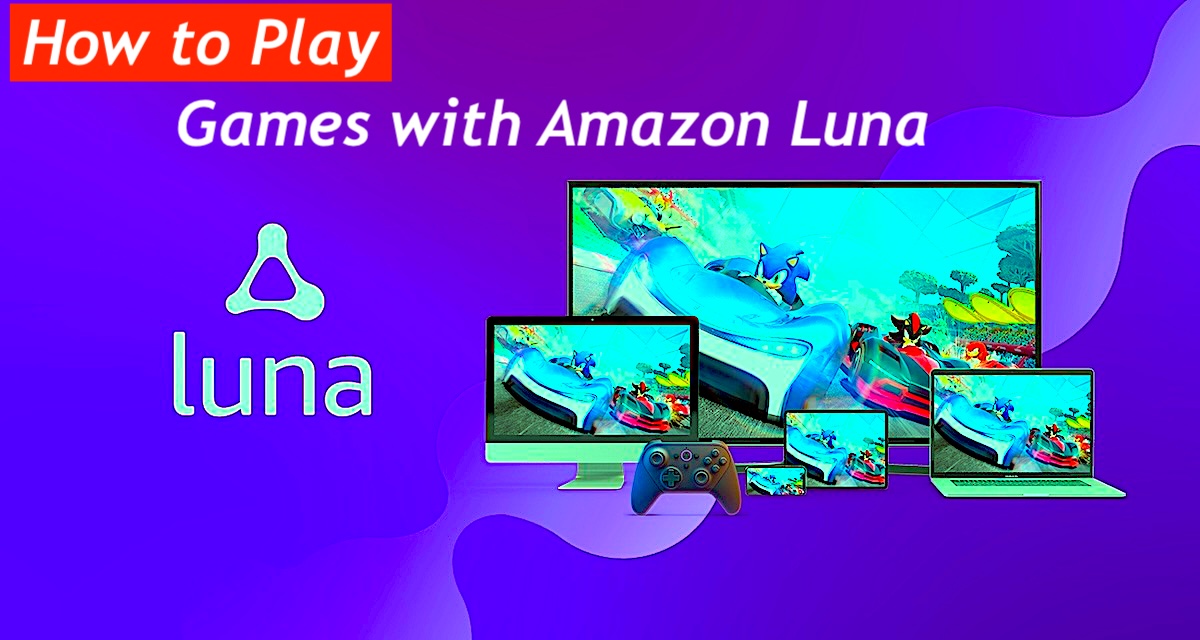
Amazon Luna and How to Play Games: Honestly, it’s kind of wild that we used to stress over hardware specs when you can now just fire up Amazon Luna on that dusty FireStick hanging off the back of the TV and instantly turn it into a legit gaming rig. It doesn’t even matter if you’re rocking the fancy 4K Max, the budget-friendly Lite, that chonky Fire TV Cube, or even just a Fire Tablet; the app actually plays nice with practically the entire lineup. It’s a genuinely impressive way to elevate your setup without dropping hundreds on a console, so if you haven’t messed around with cloud gaming yet, you’re seriously missing out on the easiest way to slack off in high definition.
What Is Amazon Luna?
Let’s be real, watching a download bar crawl across the screen is soul-crushing, which makes Amazon Luna’s instant, cloud-based streaming feel almost like magic—or at least really convenient tech. You don’t need a bulky console gathering dust or to panic-delete apps on your FireStick to free up space; you just stream the games over the internet like you’re binging a show, which is a total game-changer for anyone with terrible patience.
It’s obviously subscription-based—because isn’t everything these days?—but the Luna+ plan is genuinely packed with over 100 titles across every genre imaginable, and if you’re already paying for Prime, you get a rotating batch of free games, making it the perfect low-effort excuse to ignore your responsibilities for a few hours.
About Amazon Luna
If you’re actually looking to lose yourself in a massive open world, the Ubisoft+ plan is where it’s at, giving you heavy hitters like Assassin’s Creed Valhalla or The Division 2 without needing a PC that sounds like a jet engine. It’s honestly pretty sweet that you can stream games you already own via Ubisoft Connect too—a rare, actually helpful feature that saves you from buying the same game twice. On the total flip side, if the vibe is less “save the world” and more “social chaos,” the Jackbox subscription is absolute gold for party nights; nothing tests a friendship quite like a round of Quiplash or Trivia Murder Party, and frankly, it’s a lot cheaper than therapy.
How to Subscribe to Amazon Luna
Look, downloading the Luna app costs absolutely nothing, which feels like a small victory until you realize the actual gaming part is where the wallet comes out. It’s the classic “free to look, pay to touch” vibe, though if you’re already throwing money at Amazon for Prime, you actually snag a decent rotation of free titles without spending an extra dime—a genuinely nice perk that softens the blow. For everyone else not blessed with Prime, or if you just want the premium stuff that doesn’t vanish next month, you’re going to have to commit to a specific subscription plan, because sadly, high-end cloud servers don’t run on good intentions alone.
- Luna+ – $9.99/month
- Ubisoft+ – $17.99/month
- Jackbox Games – $4.99/month
Here’s how to subscribe to Amazon Luna:
- Visit amazon.com/luna/landing-page while logged in to your Amazon account.
- Scroll down and choose the subscription plan that suits you best. Click See all included games for a full list of titles.
- Click Start your 7-day free trial if available.
- Confirm your subscription by clicking Confirm Subscription.
Once you’ve subscribed, the next step is installing the Luna app on your FireStick.
How to Install Fox Sports Kodi Addon
How to Install Amazon Luna on FireStick 2026
- Kick things off at the home screen by navigating to Find, assuming the remote isn’t lost in the couch cushions again.
- Head to Search and type in Luna, though using the voice button is highly recommended unless you actually enjoy pecking at an on-screen keyboard like a bird.
- Look for the actual Luna icon hanging out in the Apps & Games row and select it.
- Smash that Get button to start the download; it usually takes a few seconds, depending on how much bandwidth the rest of the house is hogging.
- Finally, just hit Open once it’s done to launch the app, meaning you are now fully cleared to start gaming on the TV.
How To Setup ExpressVPN
Here’s how to quickly get started with ExpressVPN on your FireStick:
- Subscribe ExpressVPN first — it comes with a 30-day money-back guarantee.
- Download and install the ExpressVPN app on your device.
- On your FireStick home screen, go to Find → Search.
- Type ExpressVPN in the search bar and select it from the suggestions.
- Click Download and let it install.
- Create your ExpressVPN account and subscribe through their official signup page.
- Launch the app and log in using the same email + password you used when signing up.
- Finally, press that big Power icon again to connect to the fastest available server — and you’re good to stream without feeling watched.
How to Play Games with Amazon Luna on FireStick
Firing up the Luna app presents a top menu that’s mostly standard stuff like Home and Library, though seeing “Couch” as an actual option feels like the developers know exactly how we plan to spend the weekend.
You’ll immediately see tempting rows below for “New to Luna” or “Editor’s Picks,” but don’t get too excited because unless you’ve actually secured a subscription or a trial, those shiny thumbnails are strictly look-but-don’t-touch. On the bright side, the app allows for separate profiles, which is absolute salvation for anyone terrified of a significant other accidentally overwriting a hundred hours of hard-earned progress just to try out a casual party game.
Playing Games with Amazon Luna
- Open the app and select a profile immediately, mostly so the algorithm doesn’t get confused by someone else’s questionable taste in games.
- Scroll through the library until a title actually looks worth the time, click it, and hit Play Now to finally get started.
- The screen will nag about activating Cursor Mode, which is a bit of a hassle, but just follow the instructions to get past it.
- For controls, the official Luna gamepad is technically faster, but an old Xbox or PS4 controller works perfectly fine, and the smartphone app is a decent backup if the hardware situation is desperate.
- To bail out, hit the Back button, select Quit Game, and feel free to completely ignore the feedback survey like everyone else does.
And just like that, you’re loose to jump straight into the next adventure or actually close the app and face reality, though we both know which option is more appealing. It is honestly kind of baffling—in the best way—that high-end gaming now lives inside a cheap piece of plastic hanging off the back of the TV, totally killing the need for a heavy console that sounds like a jet engine on your shelf. It feels a bit like getting away with murder to get this kind of performance without the massive hardware investment, so ride that cloud gaming wave for as long as your internet connection decides to cooperate.
Wrapping Up
So, essentially, Amazon Luna transforms that innocent-looking FireStick into a legit gaming rig, letting you stream titles instantly without waiting three hours for downloads—assuming the home Wi-Fi actually decides to cooperate, of course. It is a pretty slick setup, especially since Prime members get to dip their toes in for free, though unlocking the full library does mean coughing up for another monthly sub, which is always a tough pill to swallow in this economy. Now that the mystery is solved, definitely sound off in the comments about whether it’s actually running smooth or if the input lag is causing major rage-quits, because we’re all dying to know if cloud gaming has truly arrived.