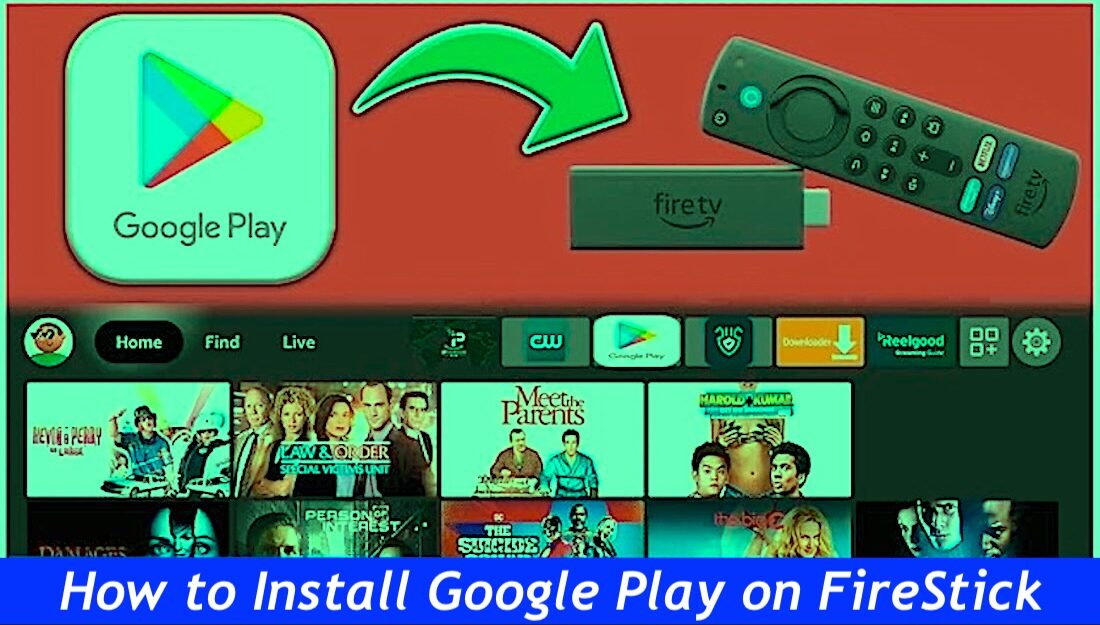
Install Google Play / Aptoide TV on FireStick: Trying to force the Google Play Store onto a FireStick is a special kind of tech torture—it’s just a glitchy headache waiting to brick your relaxing evening. Instead of fighting that losing battle, there is Aptoide TV, which feels less like a compromise and more like finding a secret backdoor to the Android ecosystem. It’s this messy, beautiful, unmanaged app store packed with the stuff Amazon won’t let you see, and unlike the Play Store workaround, it doesn’t require a computer science degree to install. Whether you’re still rocking a beat-up FireStick Lite, the hefty Cube, or that shiny new 4K Max, this method actually respects your time and sanity, getting you straight to the fun part without the digital gymnastics.
What’s Aptoide TV Anyway?
Honestly, Aptoide TV feels like that sketchy-but-awesome flea market where you find the absolute best vintage gear—it’s the rogue alternative to the vanilla Google Play experience that actually respects your living room setup. It is absolutely clutch for grabbing those grey-area streaming apps and weird utility tools that the “official” overlords blocked for being too useful, and unlike most sideloading nightmares, the interface doesn’t look like it was designed by a potato; you can actually navigate it from the couch without needing binoculars. Just keep your wits about you, though, because while it’s a paradise for nerds who love tinkering, it’s not exactly a walled garden—downloading random junk without checking the source is a total rookie move, so maybe use a little common sense to avoid turning your TV into a brick, and you’ll realize it’s the upgrade you didn’t know you needed.
Is Aptoide TV Safe and Legal?
Let’s be real, wandering off the beaten path into third-party app territory is always going to feel a little like the Wild West—thrilling, sure, but you definitely want to keep your guard up because “legally gray” is basically the vibe here. Even though a paranoid spin through VirusTotal came back clean (thank the tech gods), treating this like a trusted sanctuary is a rookie mistake; the devs swear up and down they’re legit, but since copyright laws are messier than a spaghetti dinner depending on where you live, it’s probably best to keep a trusty VPN such as ExpressVPN running just to avoid any awkward conversations with your ISP.
How to Install Aptoide TV on Your FireStick
Trying to force the actual Google Play Store onto a device that clearly hates it is a special level of masochism that usually ends in a crash loop, whereas Aptoide TV actually behaves itself and feels surprisingly native. You’ve basically got two paths to glory here—either the trusty Downloader app or the slightly-more-chaotic ES File Explorer—so just pick the one that feels less like performing digital surgery and let’s get this thing running before we lose the will to live.
Read: Top 20 Best Downloader Codes
Install Aptoide TV Using Downloader
Step one: make sure your FireStick is ready to accept apps from outside the Amazon Store. Here’s how:
- On your FireStick home, go to Find > Search. Type “Downloader” and install the app when it pops up.
- Once installed, navigate to Settings > My Fire TV > Developer Options.
- Turn on Install Unknown Apps for Downloader. On some devices, it’ll say Apps from Unknown Sources—just switch that on.
- Open Downloader from Your Apps & Channels.
- In the URL field, type and hit Go.
- Wait for the APK to download (don’t blink, it’s pretty fast).
- When prompted, click Install.
- After installation, hit Done and then delete the APK file to save space. FireStick doesn’t have unlimited storage, sadly.
Congrats! You now have Aptoide TV ready to rock on your FireStick.
How To Download Aptoide TV By ES File Explorer
If you are absolutely allergic to Downloader or just enjoy complicating your life, ES File Explorer is the backup plan, but prepare to be insulted because the actually useful “no-computer” feature is now barricaded behind a staggering ten-dollar monthly subscription. It feels genuinely offensive to charge Netflix prices just to move a couple of APKs around—seriously, who pays rent for a file manager?—but if you are desperate or just hate having money, here is the grim reality of how to make it happen.
- Open ES File Explorer, go to Tools > Downloader.
- Click the +New button at the bottom.
- In the Path box, enter Name it “Aptoide TV” or whatever helps you remember.
- Click Download Now and wait for the APK.
- Once downloaded, hit Open File to start the installation.
- Click Install and after it’s done, you can open the app immediately or later from your apps section.
Read: How to Install TeaTV on FireStick
How To Download Aptoide TV APK Online
Time to activate full geek mode because this route requires dusting off the laptop and feels a bit like hacking into the mainframe, which is honestly kind of the vibe we are going for here. It is definitely the high-maintenance option that demands you double-check—no, triple-check—that the FireStick and computer are sipping from the exact same Wi-Fi frequency, otherwise, the devices will just stare blankly at each other while you question your life choices over a silent connection error.
- On your computer, download the Aptoide APK from.
- On your FireStick, install ES File Explorer from the Amazon Store.
- Open ES File Explorer, scroll to Network > Remote Manager, and turn it on.
- Note the FTP address shown.
- On your computer, open a file explorer window and type the FTP address into the address bar.
- Drag and drop the Aptoide APK file into the folder that appears.
- Back on FireStick, use ES File Explorer to navigate to the folder where you dropped the APK (usually the Download folder).
- Select the APK, hit Install, and follow the prompts.
- When done, choose Open to launch Aptoide TV or Done if you want to open it later.
Let’s be honest, chasing the dream of a “perfect” sideloading experience is a bit like hunting for a unicorn because there is always going to be some level of tech-induced friction, especially when dealing with the FireStick’s criminally small storage capacity that seems to fill up if you so much as sneeze at it.
Aptoide TV is basically the oasis in this desert, offering a genuinely solid, regularly updated alternative to the Google Play void that doesn’t feel like wrestling with software from 1999. Just try to restrain the inner chaos demon and avoid downloading every sketchy-looking utility in sight—exercise a little digital hygiene—and the whole system should stay surprisingly stable. It would be genuinely fascinating to hear if this setup actually went smoothly or if the FireStick decided to throw one of its famous tantrums, so dropping those battle tales is highly encouraged because we have all been there.
Best VPNS For Downloading Safely
Using Aptoide TV on Fire TV Stick
Okay, assuming the installation didn’t implode—genuine props for that, by the way—the very first move has to be dragging that icon to the front because life is simply too short to be digging through the digital abyss of the “All Apps” drawer every single time you want to stream. Launching this thing is a legitimate relief; instead of the usual chaotic, pixelated mess you expect from the underground app scene, it feels like opening a freshly organized toolbox where everything just clicks. The interface is startlingly competent, almost elegant in how it refuses to clutter the screen, proving that just because an app store is rebellious doesn’t mean it has to look like a UI crime scene.
How to Use Aptoide TV on Fire TV Stick
- The Discover tab is basically the rabbit hole where productivity goes to die, packed with everything from essential streaming APKs to random time-wasters, and thank the tech gods for that search icon in the corner because doom-scrolling for one specific app is nobody’s idea of fun.
- For those who need their digital lives organized by theme rather than chaos, Categories sorts the madness into actual buckets like Social or Video Players so finding a niche tool doesn’t feel like rummaging through a messy garage.
- My Apps serves as the personal trophy case for every piece of software sideloaded onto the device, allowing for a quick inventory check without having to wrestle with the FireStick’s sluggish native menu system.
- Community and Settings covers the nuts and bolts, offering a place to either shout at other users or obsessively tweak the app’s behavior until it stops doing that one annoying thing it does.
There is something weirdly satisfying about Aptoide TV finally realizing that nobody wants to navigate a microscopic interface from ten feet away; it’s honestly a relief to see big, punchy buttons and fonts crisp enough that you don’t have to squint like a confused mole or accidentally launch the wrong app with a clumsy thumb slip. It just feels like the developers actually sat on a couch to test this thing, stripping away the nonsense clutter so you aren’t fighting the remote, which, let’s be real, is a rare vibe in the world of messy TV ports.
Wrapping It Up
Treating Aptoide TV on the FireStick as just another app store feels like a disservice because it’s really more like unlocking a secret level for your TV; it is a surprisingly solid way to dig up those obscure streaming tools or weird games that the main stores are usually too polite to list. There is a specific kind of nerdy thrill in sifting through the chaos—finding a working utility in the pile of digital junk feels like striking gold, even if the interface isn’t always winning beauty contests. If you have braved these waters or even if you just managed to break something in a spectacular fashion, definitely shout out below because swapping war stories (or rants) with fellow streaming tinkerers is genuinely the best part of this messy hobby.