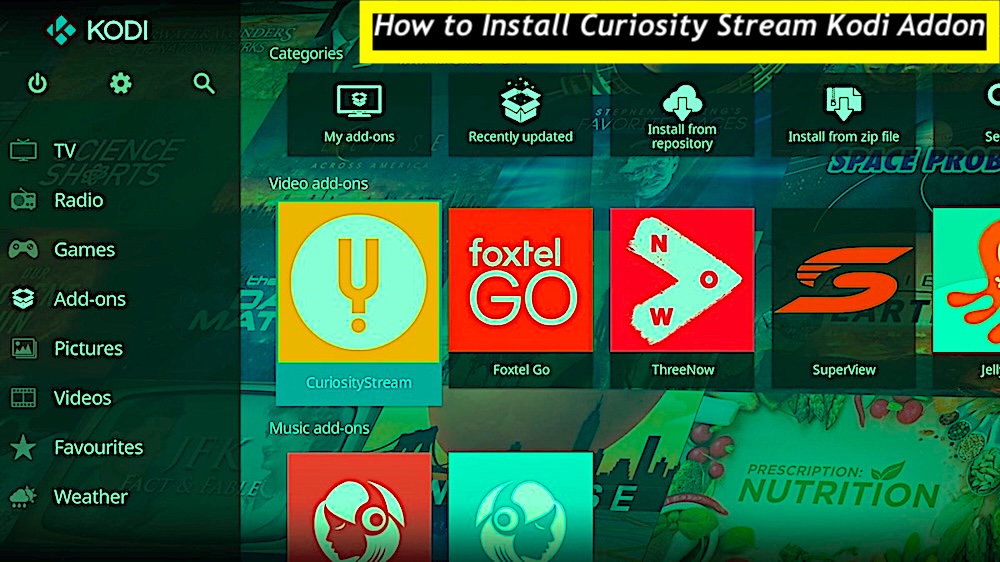
Install Curiosity Stream Kodi Addon: Look, if you’re anything like me, you’ve probably spent way too many nights falling down a rabbit hole of random clips when you could be watching actual, high-quality documentaries, which is exactly why we need to get Curiosity Stream running on your Kodi setup immediately.
Curiosity Stream Kodi Addon 2026
I’m going to walk you through the whole slightly messy process—from sorting out an account to getting the addon installed on whatever gizmo you’re using, whether it’s a FireStick, Nvidia Shield, or just a clunky laptop—because even though tinkering with Kodi repos can feel like a headache sometimes, having that massive library of brain-food right there without switching apps is honestly a game-changer, so let’s just dive in and get this thing working.
Best Alternative Search Engines
What Is the Curiosity Stream Kodi Addon?
If you’re totally over mindless reality TV and actually want to watch something that doesn’t kill brain cells, Curiosity Stream is essentially the holy grail of non-fiction, and getting it running on Kodi is a no-brainer for anyone who misses what the Discovery Channel used to be—which makes sense, seeing as the same guy started it.
About Curiosity Stream Kodi Addon
Yeah, it’s subscription-based, which is a bit of a drag, but for the sheer amount of nerdy, high-budget deep dives into science, history, and nature available here, it’s easily one of the best addons you can install; it’s rare to find a streaming service that actually makes you feel smarter just by having it on your home screen, but this library of biographies and original shows hits that sweet spot between entertainment and genuine learning perfectly.
Read: How to Install BeeTV on FireStick
Curiosity Stream Plans & Pricing 2026
Curiosity Stream isn’t a free ride, which might sting a little if you were hoping for a freebie, but honestly, premium brain-food rarely comes without a price tag. Because this is a legitimate service—not some shady back-alley repo—you’re going to need a subscription to get in, meaning we have to choose from one of their four plans; it’s a bit of a bummer to add another monthly cost to the pile, sure, but considering the sheer volume of high-quality stuff locked behind that paywall, it’s probably the only bill that actually makes us feel smarter for paying it.
- Standard HD Monthly – $2.99 per month
- Standard HD Annual – $1 per month, billed $11.99 annually
- Premium 4K Monthly – $9.99 per month
- Premium 4K Annual – $3.50 per month, billed $41.99 annually
The addon doesn’t natively handle 4K streams anyway, meaning that extra cash for the “premium” tier is basically just a donation to the corporate overlords. It hurts a little to admit—especially for those of us pixel-peepers who want everything in ultra-crisp definition—but the Standard HD plan is the only logical choice here; paying for resolution that the software can’t even display is the definition of futile, so just grab the cheaper plan, enjoy the perfectly adequate HD content, and spend the savings on something that actually improves the setup, like decent snacks or a VPN.
How to Sign Up for Curiosity Stream
To create an account and subscribe to Curiosity Stream, follow these simple steps:
- Go to the Curiosity Stream website and click the Sign Up Now button.
- Choose the subscription plan that suits your needs.
- Scroll down and enter your email address and create a password for your account. Then, click Continue to Last Step.
- If you have a promo code, enter it in the designated field. Otherwise, proceed to the payment section and carefully provide your card details.
Once completed, your account will be ready to use. You can log in to the Kodi addon using the email and password you registered with.
Read: How to Install FOX Sports on FireStick
Curiosity Stream Kodi Addon Features 2026
- You can easily get lost in the Science and History sections, though the Lifestyle stuff is surprisingly addictive too
- Originals like “Pyramid Builders” and “Space Probes” are legit fascinating and clearly made by people who care
- They actually film on location, so the landscapes look real and gritty rather than like a cheap green screen
- Subscription is only $2.99 a month, which is basically free considering what a coffee costs these days
- Zero ads to ruin the mood, thank goodness
- Includes English captions for those of us who forget to clean our ears or just like reading along
- Parental controls are solid enough to keep the kids away from the stuff that would give them nightmares
- Lets you stream on different devices simultaneously so the whole house doesn’t have to fight over the remote
How to Install the Curiosity Stream Kodi Addon
Follow these steps to install the Curiosity Stream addon on Kodi:
- From the Kodi home screen, click the Settings icon (the cogwheel) located at the top left.
- Select Add-ons from the menu.
- Choose Install from repository.
- Open the Kodi Add-on repository.
- Navigate to and select Video Add-ons.
- Scroll through the list alphabetically until you find Curiosity Stream, then click on it.
- On the addon’s overview page, click Install.
- The addon will download and install; once complete, a notification will appear in the top-right corner confirming Curiosity Stream Add-on installed.
Guide To Setup ExpressVPN
- Subscribe ExpressVPN first — it comes with a 30-day money-back guarantee.
- Download and install the ExpressVPN app on your device.
- On your FireStick home screen, go to Find → Search.
- Type ExpressVPN in the search bar and select it from the suggestions.
- Click Download and let it install.
- Create your ExpressVPN account and subscribe through their official signup page.
- Launch the app and log in using the same email + password you used when signing up.
- Finally, press that big Power icon again to connect to the fastest available server — and you’re good to stream without feeling watched.
How to Set Up the Curiosity Stream Kodi Addon
- Resist the urge to just mash the launch button immediately because it will absolutely throw an error, and nobody has the patience for that kind of drama today.
- Hover over the Curiosity Stream icon in the Add-ons section and hit it with a right-click—or a desperate long-press if you are stuck battling a laggy TV remote—to find Settings.
- This part is a total pain, but you have to punch in the registered email and password; try to keep it together while pecking at that awful virtual keyboard.
- Smash OK to save the config so the add-on actually acknowledges that the bill has been paid.
- The tedious stuff is finally over; the credentials are locked in, the library is open, and the documentary binge can start without any more annoying interruptions.
How to Use the Curiosity Stream Kodi Addon
- Head back to the main menu and fire up the addon from the Video section, hoping it actually loads on the first try this time.
- The home screen is surprisingly organized, offering nine distinct paths to distraction including the essential Watchlist and the slightly judging History tab.
- You’ll see sections like Trending Today and Newest Additions, which are perfect for when decision paralysis sets in and you just need the algorithm to pick for you.
- There’s also We Suggest for You and Collections, because apparently, we all need a little guidance through the sheer volume of content available.
- If you’re the type who needs a proper filing system, ignore the clutter and click Browse Categories to actually find what you’re looking for.
Curiosity Stream Kodi Addon 2026 Homepage
It’s honestly a bit ridiculous how much stuff is packed in here—you’ve got everything from Art & Society to Crime and Science, which is great until you realize you have to actually choose one. If you’re feeling vaguely futuristic and click on Technology, prepare to get lost in the weeds because it splits into even nerdier sub-menus like Artificial Intelligence, Energy, and Nanotechnology. It’s basically a playground for anyone who wants to pretend they understand quantum computing, and frankly, diving into those Engineering subfolders is way more satisfying than scrolling social media for the hundredth time today.
Final Thoughts
When the inevitable decision paralysis strikes and picking a show feels like solving a calculus equation, just surrender to the Trending Today tab and let the algorithm serve up hits like Frozen Secrets or the chaotic sounding When Shark Meets Croc, which sounds like a B-movie nightmare but is actually fascinating nature doc stuff. For those rare moments of clarity—or just stubbornness—the Search function is the savior; typing something generic like ‘Tech’ and hitting OK cuts through the noise instantly, revealing exactly what’s needed without the endless doom-scrolling, so honestly, just click through every section and make that subscription actually worth the price of admission.
If spending a Saturday night learning about quantum physics or obscure historical figures sounds appealing, Curiosity Stream was practically built for that specific brand of nerdiness. It’s got a library of over 3,000 titles, which is frankly an overwhelming amount of information to consume, but for anyone craving actual substance over mindless filler, it’s a total goldmine; plus, installing it from the official Kodi repo is so painless that the only real struggle will be deciding which deep-dive to start with first.