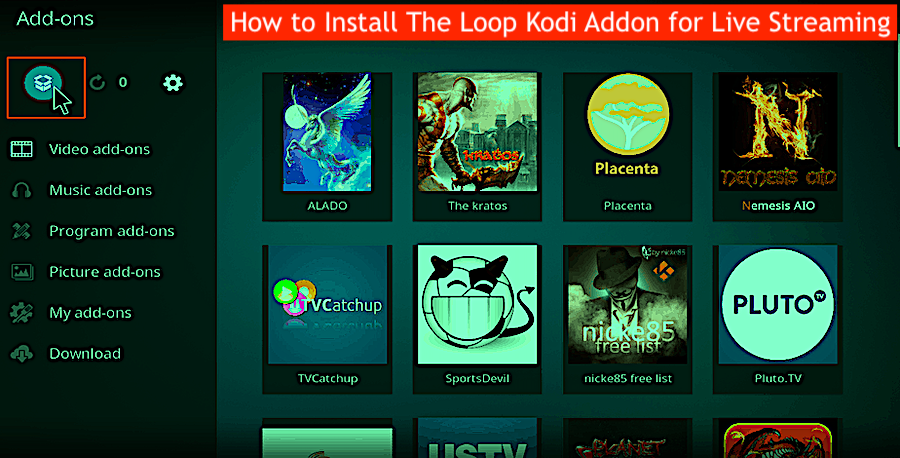
How to Install The Loop Kodi Addon: Look, I’ll be real with you—The Loop is great when it works, but sometimes, especially during big games, it can get a little… temperamental. If you’re running into glitches or lag, it’s not just you. You might want to keep a backup from our Live Sports Addons List—trust me, future-you will thank you.
What is Loop Kodi Addon
That said, when The Loop is firing on all cylinders, it’s easily one of the top-tier sports add-ons out there. It’s packed with live streams, a bunch of categories to explore, and even some live TV options like local channels, news, and random entertainment stuff—basically a cable-killer if you set it up right.
Oh, and here’s the cool part: if you’re into using Kodi’s IPTV Simple Client, you can bring those live channels right into your Kodi experience. Not bad for a free add-on, right? For this walkthrough, I used an Amazon Firestick 4K (because I’m basic like that), but honestly, any device that runs Kodi—Android TV, Google TV, Windows, Linux, your grandma’s tablet—this will work. Make sure you’ve got Kodi installed on your device first. No Kodi, no Loop. Simple as that.
How to Install The Loop Kodi Addon
- Fire up Kodi and head over to Settings (that gear icon you always forget exists).
- Click System. Yeah, it’s a bit buried, but we’re almost there.
- Now scroll to Add-ons and flip the Unknown Sources switch ON. This is your “hey Kodi, I trust this sketchy-looking ZIP file” moment.
- You’ll get a warning. Click Yes anyway. Live a little.
- Back out to the System menu and open up File Manager. Don’t ask why it’s called that. It just is.
- Click Add Source. Feels a bit like we’re hacking the Matrix, doesn’t it?
- Click where it says
<None>and enter this URL:
https://loopaddon.uk/theloop
Then hit OK. - In the box underneath, give it a name like loop or something memorable. I call mine Sports Wizard” but that’s probably too extra.
- Go back to the System menu again (yes, again) and this time open Add-ons.
- Select Install from zip file. This is where the magic starts.
- Find the source you just added—probably “loop” unless you got creative—and select it.
- Click on the zip file called
repository.loop.zip. If it’s not there, double-check the URL you entered. - Wait for the “Loop Repository Add-on installed” notification. Stretch. Grab a coffee. Celebrate a little.
- Next, go to Install from repository.
- Select Loop Repository. The home stretch!
- Click Video Add-ons.
- Find and select The Loop. That’s our golden goose right there.
- Hit Install and let it do its thing.
- Once you see “The Loop Add-on installed,” it’s go time.
- Head back to the Kodi Home screen, go into Add-ons, and you’ll find The Loop waiting for you.
- If you get a pop-up message or an update note, just close it. We don’t have time for that right now—we’ve got games to watch.
And that’s it—you’re in. The Loop is ready to stream live sports, TV channels, and a bunch of other stuff that you probably didn’t even realize Kodi could handle. If something doesn’t work? Welcome to the Kodi life. It’s messy but beautiful.
A Quick Reality Check: Use a VPN
Alright, time for the lecture you’ve heard a thousand times but probably still ignore: use a VPN. Your ISP (aka the people you pay way too much for internet), the government, addon devs, and probably a couple of data-hungry squirrels are watching what you stream. Creepy, right?
I use Surfshark VPN because it’s cheap, fast, and lets me use one account on all my devices. Even your toaster, probably. And yeah, this isn’t sponsored—but if you’re going to dive into the wild west of streaming, at least wear a bulletproof vest. There you go. The Loop is up and running, and you didn’t even have to Google it 15 times like I did the first time. Enjoy the streams, and may your buffering be minimal and your streams high-def.
The Loop Addon Details & Categories
Alright, let’s dig into what makes The Loop tick. This isn’t just another half-baked sports add-on—it actually pulls together a pretty impressive collection of live streams and categories into one clean, Kodi-friendly package.
Some standout categories include:
- Today’s Schedule – The MVP of the bunch. This is where you’ll find daily-updated live sporting events. No need to Google kickoff times anymore.
- 24/7 Zone – Constantly looping content. Great for insomniacs and background noise junkies.
- Football, Rugby, Cricket – Yes, they’ve got global coverage. From Premier League to IPL.
- Golf, Auto Zone, Fight Zone – For when you’re feeling fancy, fast, or ferocious.
If I’m being honest, most people (myself included) head straight for that Today’s Schedule. It’s simple, no-fuss, and updates daily. Sports, without the wild goose chase. What a concept.
The Loop Autopilot Feature
Now here’s something unexpected: AutoPilot. Yes, it’s as cool as it sounds. Basically, it helps streamline the way you browse and play live streams. No, it doesn’t fly a plane, but it does make The Loop feel smarter than the average add-on. And let’s be real, most of these things are janky at best. This is a nice touch.
Built-in EPG (Electronic Program Guide)
This feature honestly blew me away a bit. The Loop lets you integrate an EPG—that’s a TV guide for those of us who stopped watching cable a decade ago. Combine this with your IPTV provider, and suddenly you’re looking at a full-blown live TV hub inside Kodi. No more flipping between ten apps. Everything lives right here. One ring to rule them all.
Live Channels Inside The Loop
Yup, it also has free built-in live channels. We’re talking news, local stations, and other random channels that are shockingly useful when you’re just trying to watch *something*. Best part? Many of these channels come with multiple stream links. So if one fails (and let’s face it, it probably will at some point), just hop to the next one. Think of it like a buffet of bandwidth.
Addon Dependency Prompt
Sometimes when you’re browsing or launching a stream, you’ll get prompted to install another add-on—usually JetProxy or something similar. If that pops up, just click Yes. No drama. It’s not spyware (we checked). That said, if you really want to get the most out of The Loop, I highly recommend poking around and exploring it for yourself. There’s a lot under the hood, and not everything is obvious on first use.
Is The Loop Addon Legal?
Here comes the part no one really wants to talk about—but we kind of have to. Is this legal? Honestly? Maybe. Maybe not. The Loop isn’t “officially” sanctioned. It’s one of those unverified third-party Kodi add-ons, and it’s probably not paying licensing fees to the NFL, Premier League, or whoever owns reruns of vintage cricket matches. So yeah… tread lightly. Important: You’re the one responsible for whatever you stream. Not Kodi. Not The Loop. Not your cat. If you want the warm fuzzy feeling of being 100% legal, check out our curated list of verified streaming apps. They exist. They’re not as exciting. But they exist.
Is This Safe to Use?
Let’s talk about safety. Because honestly, installing third-party add-ons can feel a little like downloading files off LimeWire back in 2004. But good news—The Loop’s repo passed a VirusTotal scan without a single red flag. No malware, no hidden crypto miners (we’ve seen it all, folks).
Still, if you’re streaming unverified content—even if you’re just thinking about it—you should really be using a VPN. Not just for privacy, but for peace of mind. Personally, I use Surfshark because it’s fast, cheap, and works across all my devices (yes, even my absurdly outdated Android tablet). It keeps your ISP from snooping and prevents any sketchy addon from knowing your real IP. If you’re still on the fence, they offer a risk-free trial.